


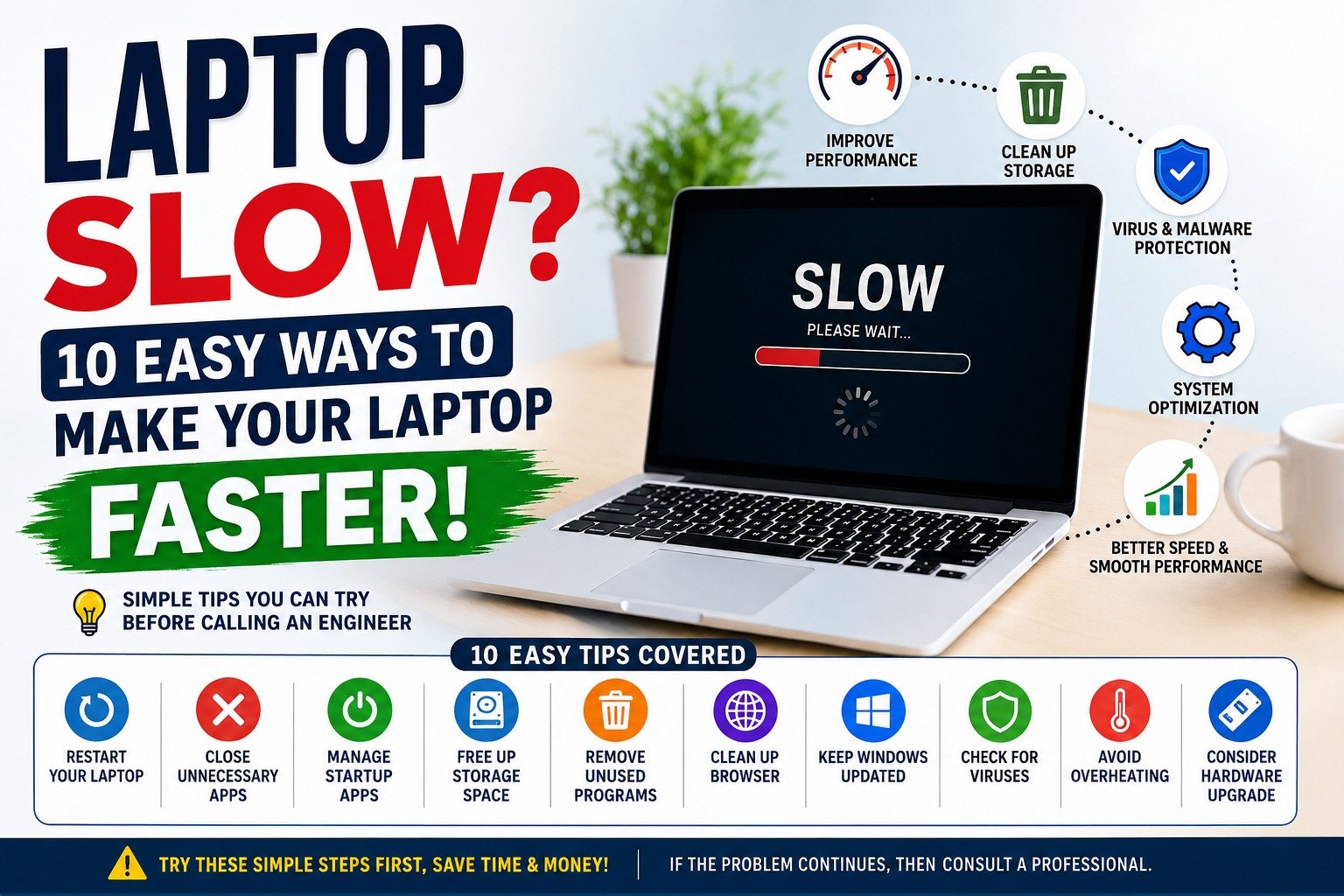
Laptop Running Slow? 10 Easy Ways to Make Your Laptop Faster
A slow laptop can be very frustrating. You open an application and wait. You click on a file and nothing happens. Sometimes the laptop takes several minutes to start, and sometimes it freezes while you are working.
But don’t worry — a slow laptop does not always mean that you need to replace it or immediately call an engineer.
In many cases, you can improve your laptop’s performance by checking a few simple things yourself.
In this guide, we will discuss 10 easy ways to make a slow laptop faster and when you should finally contact a computer professional.
Why Is My Laptop Running Slow?
There can be many reasons behind a slow laptop.
Some common causes include:
- Too many programs running in the background
- Too many startup applications
- Low storage space
- Too many browser tabs
- Temporary files and unnecessary data
- Outdated Windows or drivers
- Malware or unwanted software
- Insufficient RAM
- An old or slow hard drive
- Laptop overheating
The good news is that many of these problems can be checked and improved without advanced technical knowledge.
10 Easy Ways to Speed Up Your Laptop
1. Restart Your Laptop
It sounds very simple, but restarting your laptop can solve many temporary performance problems.
When you use your laptop for many hours, different applications and background processes continue running. Sometimes these processes consume memory and system resources.
Try this:
Start → Power → Restart
After restarting, check whether the laptop feels faster.
Pro Tip: If your laptop has been running continuously for several days, restarting it can be a good first troubleshooting step.
2. Close Unnecessary Applications
Running many applications at the same time uses your laptop’s RAM and processor.
For example, you may have a browser, YouTube, WhatsApp, Word, Excel and several other programs open simultaneously.
Close applications that you are not currently using.
You can also press:
Ctrl + Shift + Esc
to open Task Manager in Windows.
Check which applications are using a lot of CPU, Memory or Disk.
Do not randomly end Windows system processes if you don’t know what they do.
3. Disable Unnecessary Startup Programs
Does your laptop take a long time to start?
Startup applications could be one reason.
Some programs automatically start whenever Windows starts, even though you may not need them immediately.
To check startup applications:
- Press Ctrl + Shift + Esc
- Open Startup apps
- Look at the applications listed there.
- Disable programs you don’t need to start automatically.
For example, certain update tools or applications may not need to launch every time you turn on your computer.
Be careful with security software and important Windows components.
4. Free Up Storage Space
A nearly full storage drive can make your computer harder to manage and may contribute to poor performance.
Check your main Windows drive, usually C:.
Go to:
Settings → System → Storage
Look for:
- Temporary files
- Recycle Bin
- Downloads
- Large unused applications
- Old files
Remove files that you are sure you no longer need.
Important: Before deleting important documents, photos or business files, make sure you have a backup.
Pro Tip: Don’t wait until your storage is completely full. Keep some free space available for normal Windows operations and updates.
5. Remove Unused Programs
Over time, we install many applications and forget about them.
Some programs may continue running background services even when we don’t use them.
Go to:
Settings → Apps → Installed apps
Review the applications installed on your laptop.
If you find software that you definitely don’t need, uninstall it.
Before uninstalling:
Ask yourself:
“Do I know what this program is?”
If you don’t recognize an application, don’t remove it blindly. Search for its purpose or ask a professional.
6. Clean Up Your Web Browser
Sometimes the laptop feels slow when the real problem is the web browser.
If you have dozens of tabs open, many extensions installed and large amounts of browsing data, your browser may consume significant memory.
Try:
- Closing unused tabs
- Removing unnecessary extensions
- Updating your browser
- Clearing unnecessary browsing data
- Restarting the browser
Also check whether unwanted extensions have been installed.
7. Keep Windows Updated
Windows updates can include security improvements, bug fixes and performance-related improvements.
Go to:
Settings → Windows Update
and check whether updates are available.
You should also keep important applications and device drivers updated when appropriate.
But remember:
Don’t download drivers from random websites just because a website says your computer has outdated drivers.
Use trusted sources whenever possible.
8. Check for Malware or Unwanted Software
Viruses and other unwanted software can affect laptop performance.
They may cause:
- Slow startup
- High CPU usage
- Unwanted advertisements
- Browser problems
- Unexpected pop-ups
- Unknown applications running in the background
Use a trusted security solution and keep it updated.
If your laptop suddenly becomes extremely slow and you notice unusual behavior, don’t ignore it.
Safety Tip: Never install unknown “PC Booster”, “Speed Up Your Computer” or suspicious software simply because it promises to make your laptop faster.
Some such programs can create more problems instead of solving them.
9. Check If Your Laptop Is Overheating
Heat can affect laptop performance.
When a laptop becomes too hot, it may reduce its performance to protect the hardware.
Common signs include:
- Very loud fan
- Hot laptop body
- Sudden performance drops
- Unexpected shutdowns
- Fan running continuously
What can you do?
Keep the laptop on a hard, flat surface so air can circulate properly.
Avoid using it on:
- Beds
- Blankets
- Sofas
- Other soft surfaces that can block ventilation
Keep the ventilation areas clean.
If the laptop continues overheating, professional cleaning and hardware inspection may be necessary.
10. Consider a Hardware Upgrade
If you have tried the basic solutions and your laptop is still slow, the problem may be related to its hardware.
Older laptops commonly use traditional HDD storage, while an SSD can provide a significant improvement in everyday responsiveness.
Adding more RAM may also help when your laptop frequently runs out of available memory.
However, not every laptop supports every upgrade.
Before buying new hardware, check:
- Laptop model
- RAM compatibility
- Maximum supported RAM
- Storage interface
- Existing hardware configuration
If you are unsure, ask a computer technician to check your laptop first.
What NOT to Do When Your Laptop Is Slow
When people see a slow computer, they sometimes try risky solutions.
Avoid:
- Downloading unknown “PC speed booster” software
- Deleting Windows system files manually
- Installing random drivers
- Changing advanced settings without understanding them
- Opening the laptop without proper knowledge
- Using pirated software to fix computer problems
- Deleting important files just to create storage space
A small mistake can turn a simple performance problem into a bigger problem.
When Should You Call a Computer Engineer?
You can try the basic troubleshooting steps above.
But professional help is recommended if:
- The laptop does not turn on
- The laptop shuts down repeatedly
- The screen shows unusual lines or flickering
- The hard drive makes unusual sounds
- The laptop overheats continuously
- Windows repeatedly shows blue-screen errors
- Important files are disappearing or becoming inaccessible
- You suspect a serious malware infection
- The laptop has suffered liquid or physical damage
- Hardware replacement or internal cleaning is required
Sometimes the fastest and safest solution is simply to get the laptop properly diagnosed.
Quick Checklist: Is Your Laptop Slow?
Before calling an engineer, check these things:
☐ Restart the laptop
☐ Close unnecessary applications
☐ Check Task Manager
☐ Review startup applications
☐ Free up storage space
☐ Remove unused programs
☐ Clean up your browser
☐ Install important Windows updates
☐ Run a trusted security scan
☐ Check for overheating
If the problem continues after these steps, professional diagnosis may be the better option.
Frequently Asked Questions
1. Why is my laptop suddenly very slow?
A sudden slowdown can be caused by a background application, Windows update, low storage, malware, overheating or a hardware problem.
2. Does restarting a laptop make it faster?
Restarting can clear temporary processes and free system resources. It is one of the easiest troubleshooting steps to try first.
3. Does deleting files make a laptop faster?
Freeing up storage can help when the drive is very full, but simply deleting random files is not a good solution. Remove unnecessary files safely and keep important data backed up.
4. Will adding RAM make my laptop faster?
It can, especially if your laptop frequently runs out of available memory while multitasking. However, compatibility and the laptop’s existing hardware must be checked first.
5. Is an SSD better than an HDD?
For everyday laptop use, an SSD generally provides much faster responsiveness than a traditional HDD, especially for starting Windows and opening applications.
6. Should I use a laptop cleaning or speed booster application?
Be careful. You don’t normally need unknown third-party “speed booster” applications. Some can be unnecessary or even problematic.
7. How often should I restart my laptop?
There is no strict schedule for everyone, but restarting when the computer becomes sluggish or after certain updates can help resolve temporary issues.
8. When should I take my laptop to an engineer?
If basic troubleshooting doesn’t solve the problem, or if you notice overheating, hardware noises, repeated crashes, display problems or unexpected shutdowns, professional diagnosis is recommended.
Final Thoughts
A slow laptop doesn’t always mean that your computer is old or needs to be replaced.
Sometimes the solution can be as simple as restarting the laptop, closing unnecessary programs, freeing storage, managing startup applications or checking for unwanted software.
The most important thing is to troubleshoot carefully.
Don’t panic. Don’t randomly delete files. And don’t install unknown software promising to make your laptop “10 times faster.”
Start with the simple and safe checks first.
And if the problem continues, getting your laptop professionally diagnosed can save you both time and money.
Remember:
“Before you repair it, understand the problem. Before you replace it, check the solution.”
9828036274
computers mela kota google my buisness profile with locationhttps://maps.app.goo.gl/PJdCFWLhUjG9EADM9