

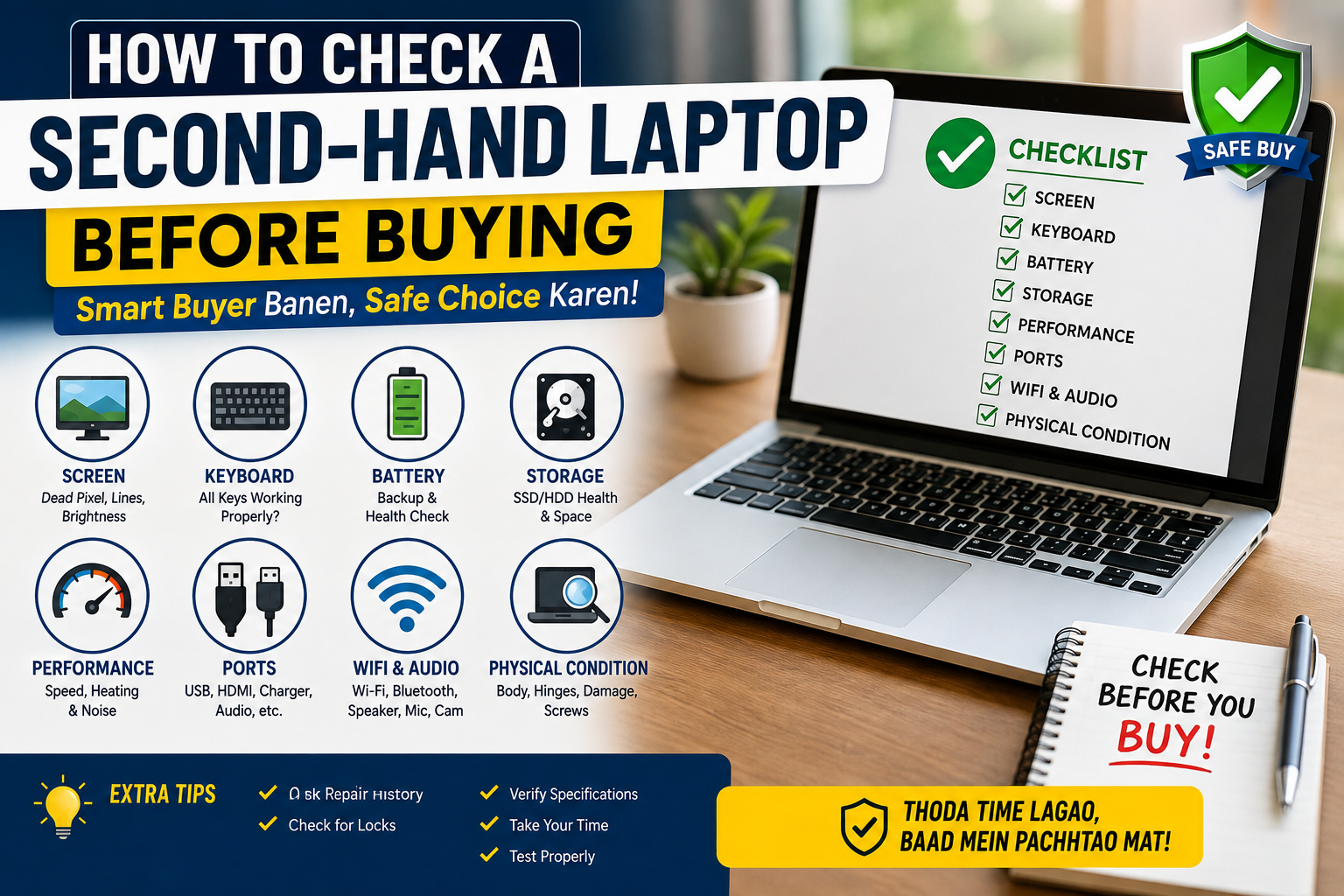
How to Check a Second-Hand Laptop Before Buying: A Complete Buyer’s Guide
Buying a second-hand laptop can be a smart way to save money. You may get a good-quality laptop with useful features at a much lower price than a new one. However, buying a used laptop without proper checking can also lead to unexpected repair costs and performance problems.
A laptop may look good from the outside while having issues with its battery, screen, keyboard, storage, motherboard, or other internal components.
Before making payment, take some time to inspect and test the laptop carefully. This guide will help you understand the most important things to check before buying a second-hand laptop.
1. Check the Physical Condition
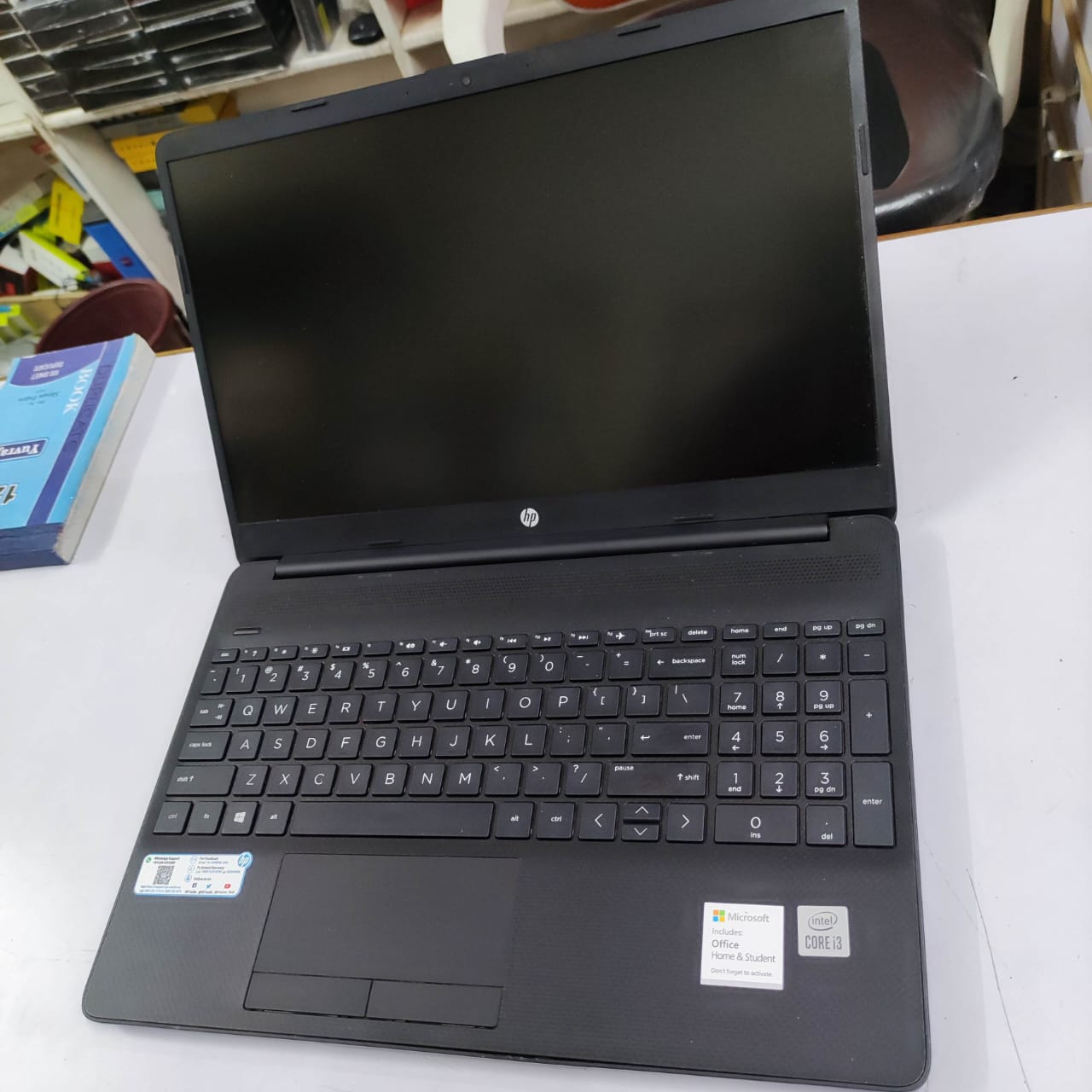
Start by carefully looking at the overall condition of the laptop.
Check the laptop body for:
- Scratches, cracks, or dents
- Loose or damaged hinges
- Missing screws
- Broken plastic parts
- Signs of water damage or corrosion
Open and close the laptop screen a few times. The hinges should move smoothly and should not feel excessively loose.
Also, inspect the charging port and other connection ports for physical damage.
2. Check the Laptop Screen
The screen is one of the most important and potentially expensive parts of a laptop.
Turn on the laptop and look carefully for:
- Dead pixels
- Black or bright spots
- Lines on the display
- Screen flickering
- Uneven brightness
- Discoloration
Increase and decrease the screen brightness to make sure it works properly.
You can also display plain white and black backgrounds to help identify display problems.
3. Test the Keyboard and Touchpad
Open a text editor and test all the important keys.
Check:
- Letters and number keys
- Spacebar
- Enter key
- Shift and Ctrl keys
- Arrow keys
- Function keys
Also test the touchpad by moving the cursor, clicking, scrolling, and using gestures if supported.
A few non-working keys may seem like a small problem, but keyboard replacement can add extra repair costs.
4. Check Battery Performance
Battery health is especially important when buying a used laptop.
Disconnect the charger and use the laptop for some time. Observe how quickly the battery percentage drops.
Be careful if:
- The battery drains unusually fast.
- The laptop suddenly shuts down.
- The battery percentage changes unexpectedly.
- The laptop only works when connected to the charger.
Remember that older laptops may naturally have reduced battery capacity, so consider the cost of battery replacement when deciding on the price.
5. Verify the Actual Specifications
Do not depend only on the seller’s description.
Check the actual specifications of the laptop, including:
- Processor or CPU
- Installed RAM
- Storage capacity
- SSD or HDD
- Graphics card, if applicable
- Screen resolution
- Operating system
Make sure the specifications match what the seller advertised.
A good price is only meaningful when you know exactly what configuration you are buying.
6. Check SSD or Hard Disk Health
Storage problems can affect laptop speed, reliability, and your data.
If the laptop has a traditional hard disk, listen for unusual clicking or grinding sounds.
Also watch for:
- Very slow startup
- Frequent freezing
- Files taking too long to open
- Error messages
- Unexpected system crashes
If possible, check the health and condition of the SSD or hard drive before buying.
7. Test Wi-Fi, Bluetooth, Webcam, Speakers and Microphone
A laptop is more than just its processor and RAM. Test the important built-in features.
Check:
- Wi-Fi connection
- Bluetooth connectivity
- Webcam
- Microphone
- Speakers
- Headphone jack
Connect to Wi-Fi and browse the internet. Open the camera application and test the webcam. Play a video or audio file to check the speakers and microphone.
These tests usually take only a few minutes but can help you identify hidden problems.
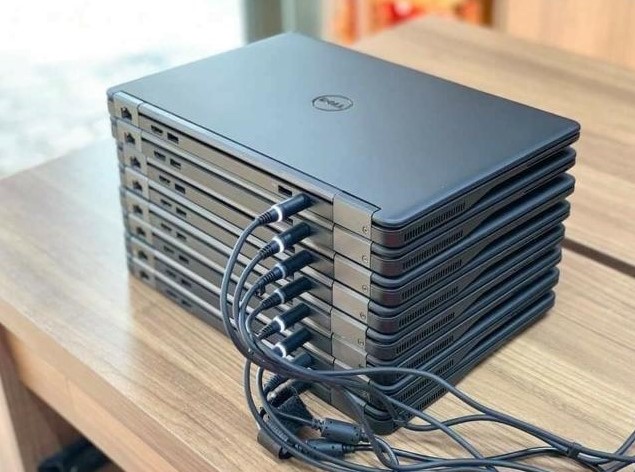
8. Test All Ports
Check the available ports, such as:
- USB ports
- HDMI port
- Charging port
- Headphone or audio jack
- SD card reader, if available
A damaged or non-working port can be inconvenient and may require repair.
If possible, carry a USB device or other accessory to test the ports before purchasing.
9. Check Heating and Overall Performance
Use the laptop for at least 10 to 15 minutes before making a decision.
Open several browser tabs, play a video, open common applications, and observe the overall performance.
Watch for:
- Excessive heating
- Constant loud fan noise
- Frequent freezing
- Unexpected restarts
- Sudden shutdowns
- Error messages
Some warmth and fan noise can be normal. However, excessive heat or repeated shutdowns may indicate a cooling or hardware problem.
10. Check the Charger and Charging Port
Make sure the charger works properly.
Check whether:
- The laptop charges consistently.
- The charging port feels loose.
- The charging cable is damaged.
- The charger is original or a suitable compatible model.
A damaged charging port can sometimes be expensive or difficult to repair.
11. Check for Previous Repairs or Water Damage
Ask the seller about the laptop’s history.
Important questions include:
- Has the screen ever been replaced?
- Has the battery been changed?
- Has the motherboard been repaired?
- Has the laptop suffered water damage?
- Have any major parts been replaced?
- Why is the laptop being sold?
An honest seller should be able to provide clear information about the laptop’s condition and repair history.
12. Check for Account, BIOS or Device Locks
Before paying, make sure the laptop is ready for a new owner.
Check that:
- You can create or sign in with your own account.
- The previous owner’s account has been removed.
- The operating system can be properly activated.
- The BIOS is not unexpectedly password-protected.
- The device is not still managed or locked by a company or organization.
For Apple laptops, make sure any Activation Lock or previous owner’s device lock has been properly removed before completing the purchase.
A Simple Second-Hand Laptop Buying Checklist
Before you buy, remember to check:
- Physical condition
- Screen
- Keyboard
- Touchpad
- Battery
- Processor and RAM
- SSD or hard disk
- Wi-Fi and Bluetooth
- Webcam and microphone
- Speakers
- USB and other ports
- Heating and fan noise
- Charger
- Actual specifications
- Previous repair history
- Account and device locks
Final Thoughts
Buying a second-hand laptop does not have to be risky. The key is to avoid making a decision based only on a low price or attractive appearance.
Take your time and test the laptop properly. Check its screen, keyboard, battery, storage, ports, connectivity, performance, and overall condition.
If possible, compare the asking price with the cost of a similar new or refurbished laptop. Also consider any future expenses, such as a battery replacement, storage upgrade, charger, or repair.
Remember:
A smart buyer does not simply look at the price. A smart buyer checks the laptop before making payment.
By following this simple checklist, you can reduce the risk of buying a problematic device and make a better decision when choosing your next second-hand laptop.
Contact Details
Call/Whatsapp: 9828036274
Website: www.laptopcomputerskota.in
Address: 621, Mukesh Plaza, Near S.S. Dairy, Dadabari, Kota (Raj.)